Saturday, 15 March 2014

What are The Top 6 Tools for SEO Keyword Research

Top 6 Tools for SEO Keyword Research

With the passage of time, Google has made it quite tough for the blogs to get ranked better. So many rules and strategies have to keep in mind including proper use of keywords, well-engaged content, domain name, marketing, promotion as well as appropriate SEO. Without all these things, we can not even imagine of getting our blogs and websites ranked higher in the search engines.
To make the keyword research easier for the SEOs, plenty of tools are available. What you have to do is to insert your desired keyword idea to get relevant suggestions with an automatic keyword research system. If you are a little confused of which SEO keyword research tools would be best and most appropriate, then here are some useful suggestions to consider while searching both short tail and long tail keywords.

#1. Wordtracker:

Wordtracker is one of the most favorite keyword research tools of SEOs and marketers. This tool kit provides you plenty of features and options to get facilitated with while searching your list of keywords. But it is not free of cost, you have to pay a monthly subscription fee in order to make use of it.

#2. Keyword Discovery:

Keyword Discovery is yet another wonderful keyword research tool which lets you get desired keywords by using it pulling from top to end option. With Keyword Discovery, you can also enjoy bidding values on PPC campaigns which get translated into informative data. Its premium version is available by paying a few hundred dollars annually.

#3. Google Adword Tool:

I must say Google Adword is the most appropriate and extensively used keyword research tool all over the world. If I am not wrong then almost 70 to 80 percent website and blog owners make use of Google Adword to find their desired list of keywords. Another plus point of Google Adword is that it is free of cost. Along with the words and phrases, it also provides you the suggested list of short tail and long tail keywords on a global search basis.
Note: For researching keywords, you can use “Keyword Planner” available in Google Adword.

4. Ubersuggest:

Ubersuggest is also a very handy and easy to use keyword research tool. Unlike other traditional keyword research toolkits, Ubersuggest pulls a lot of suggestions on the basis of global research and presents you the list of keywords which are ranked higher by the search engines.

5. SEOBook Keyword List Generator:

SEOBook Keyword List Generator is a quite easy to use keyword research tool. It provides you the facility generating appropriate keywords and phrases. Many of us also call it a nifty keyword research program. To make best use of SEOBook Keyword List Generator, you should either use Chrome or Firefox as the default browser.

6. SpyFu:

With SpyFu, you can see which of your competitors are going up and which are going down in the rankings of search engines. Isn’t it amazing that now you would have clear idea of which keywords your competitors are making use of for the purpose of competing you in the World Wide Web? Yes it definitely is a wonderful idea. So monitor your website niche’ status by inserting your keywords into this tool, and also get the most desired and appropriate list of keywords which you can make use of in writing your web contents / articles.

7. Bing Keyword Research Tool:

We can say it for sure that Bing Keyword research program is not behind the race than Google Adword. It, instead, can be of great help in searching the keywords which can maximize your chances of getting organic traffic for. Bing would also help you get your keywords in multiple languages.
Original Post Here

Me : If you need more help, want to ask feel free to use below comment box. It will be my pleasure to help you. THANKS for reading.

Friday, 14 March 2014

What Is Nested Selection Structure, If-Then and Select case Statement In Visual Basic?

Nested Selection Structure, If-Then and Select case Statement


If-Then Statement:


If-Then Selection structure performs an action if condition is True and if not True then it skips the action. Syntax of If-Then Statement is

    If Condition Then
   Statement(s)        or       If Condition Then Statement
    End If

Where Condition may be any expression, which can evaluate True (Non Zero) or False (Zero) result.


Example:

Start Visual Basic with new Standard EXE project, place a CommandButton on a Form and write following code in Click event of the CommandButton.

Private Sub Command1_Click ()
         Dim i As Integer, j As Integer
          i = 5
          j = 8
           If (j < i) Then
                   Print “Large No is =” , i
         End If
         If (j > i) Then Print “Large No is = “ , j
End Sub


     Output:

     Large No is = 8

Press F5 key to run this project and Click the CommandButton. And check the result.

If - Then - Else:


If - Then - Else statement is used to perform an action if condition is True and performs another different action if condition is False. Syntax of if - Then - Else statement is

                    If Condition Then 
                        Statement (s)
                    Else
                        Statement (s)
                    End If

Example:

Start Visual Basic with new Standard EXE project, place a CommandButton on a Form and write following code in Click event of the CommandButton.


Private Sub Command1_Click ()
         Dim I As Integer, J As Integer
          I = 5
          J = 10
           If I > J Then
                   Print “Large No is =” , I
           Else
         Print “Large No is = “ , J
       End If
End Sub


     Output:
     Large No is = 10

Press F5 key to run this project and Click the CommandButton. And check the result.

Nested Selection Structure:


When one selection structure is the part of another Selection structure, Then it is called nested selection structure. Syntax of nested IF statement is

If Condition1 Then            Or          If Condition1 Then 
Statement(s) Block 1                        Statement(s) Block 1
Else                                                  ElseIf condition2 Then 
If condition2 Then                            Statement(s) Block 2
Statement(s) Block                           ----------------------------
---------------------------                       ElseIf condition n Then
Else                                                  Statement(s) Block n
If condition n Then                          End If 
Statement(s) Block n
End If
End If
 End If

Example:

Start Visual Basic with new Standard EXE project, place a CommandButton on a Form and write following code in Click event of the CommandButton.


Private Sub Command1_Click ()
         Dim I As Integer, J As Integer
          I = 5
          J = 7
          K = 6
           If I > J And I > K Then
                   Print “Large No is =” , I
           Else
         If J > I And J > K Then
         Print “Large No is = “ , J
       Else
       If K > J And K > I Then
         Print “Large No is = “ , K
       End If
       End If
       End If
End Sub
Private Sub Command1_Click ()
         Dim I As Integer, J As Integer
          I = 5
          J = 7
          K = 6
           If I > J And I > K Then
                   Print “Large No is =” , I
         ElseIf J > I And J > K Then
             Print “Large No is = “ , J
         ElseIf K > J And K > I Then
             Print “Large No is = “ , K
         End If
         End Sub


Press F5 key to run this project and Click the CommandButton. Output for both code segments will be the same as displayed on the Form.

                          Large No is 7

Selection Case Statement:


Like If - Then - Else, select case is also multiple selection structure. Syntax of Select Case Statement is

                        Select Case Expression
                              Case ExpressionList 1
                                             Statement(s) Block 1
                              Case ExpressionList 2
                                            Statement(s) Block 2
                              ----------------------------------------- 
                             Case ExpressionList n
                                            Statement(s) Block n
                            Case Else
                                          Statement(s)
                        End Select

Where Expression may be any numeric or string expression and ExpressionList may be in the following Format.

  • Expression 1 [, Expression 2 [, Expression 3]].....
  • Expression to Expression 
  • Is Relational Operator
Example:

Start Visual Basic with new Standard EXE project, place a CommandButton on a Form and write following code in Click event of the CommandButton.


Private Sub Command1_Click ()
         Dim choice As Integer
          Choice = 7
          Select Case Choice
          Case 1, 2, 3
                  Print “Choice is in Range 1…3”
           Case 4 to 6
                  Print “Choice is in Range 4…6”
           Case is = 7
                  Print “ Choice is 7”
           Case 8, 9, is > 100
               Print “Choice is 8,9 or greater then 100”
           Case Else
               Print “Invalid Choice”
          End Select
 End Sub


 Output:

Choice is 7

Press F5 key to run this project and Click the CommandButton. Output will be as shown above.

Example:

 Start Visual Basic with new Standard EXE project, place a CommandButton on a Form and write following code in Click event of the CommandButton.


Private Sub Command1_Click ()
         Dim Name As Integer
          Name = “Waqar”
          Select Case Choice
          Case “Khalid” , “Zeshan”
                  Print “Choice Name is Khalid or Zeshan”
           Case Arsalan to Fezan
                  Print “Choice Name starts with A, B, C, D, E or F”
           Case is > “Tanvir”
                  Print “ Choice Name greater than character T”
           Case Else
           Print “Invalid Choice”
          End Select
 End Sub

Press F5 key to run this project and Click the CommandButton. The following output will be displayed on the Form.

                 Choice Name greater than character T

Example:

 Start Visual Basic with new Standard EXE project, place a CommandButton on a Form and write following code in Click event of the CommandButton.


Private Sub Command1_Click ()
         Dim dob As Date
          dob = #03/11/2014#
          Select Case dob
          Case #04/04/98# , #03/02/98#
                  Print “Date of Birth is 04/04/98 or 03/02/98  ”
           Case #01/01/99# , #012/031/99#
                  Print “Date of Birth is in the range 01/01/99 or 12/31/99  ”
           Case is > #01/01/2000#
                  Print “Date of Birth is greater than01/01/2000  ”
           Case Else
           Print “Invalid Date of Birth”
          End Select
 End Sub

Press F5 key to run this project and Click the CommandButton. The following output will be displayed on the Form.


Me : If you need more help, want to ask feel free to use below comment box. It will be my pleasure to help you. THANKS for reading.

Thursday, 13 March 2014

How To Download and Change your Blog Template (Step By Step).

Download Template and Change Template of your Blog.


The most important thing for your blog is content, But to don't forget the importance of blog templates and the way your blog looks. The good and simple design will attract people attention and your visitors will be increase day by day. while the bad design of your blog will repel the visitors. Good template design also important for getting approved from advertising sites like Google Adsense, Chittika, Infolinks and many more like that. When you apply for registration with these advertising sites they will review your site design, contents, and visitors. So it is much important that your blog template is simple, clear and space available for advertising.


For that purpose i am going to show you how to choose Template design for your blog/site and how to customize the manu of that template. So lets start.


1) . Download Template:


Many websites gives free templates for blogger like bloggerthemes.net, hongkiat.com and templateism.com but I personaly advised you to download template from deluxetemplates.net. Here you will find good templates. Search for Template that have simple design having one side bar Menu bar and color near to white and download it. 

Here you will find many categories on lift side. Click on one according to your blog/site Title.


Select Template of your choice according to your Blog Title.


1. First take a look of that blog by clicking Demo.
2. If you like, then click on download to download that template for your blog.
3. choose where you want to save that template.
4. Start downloading.

Now extract the downloaded folder, you will find some files in that folder along with file one file having .xml extensions.


2) . Upload Template File:


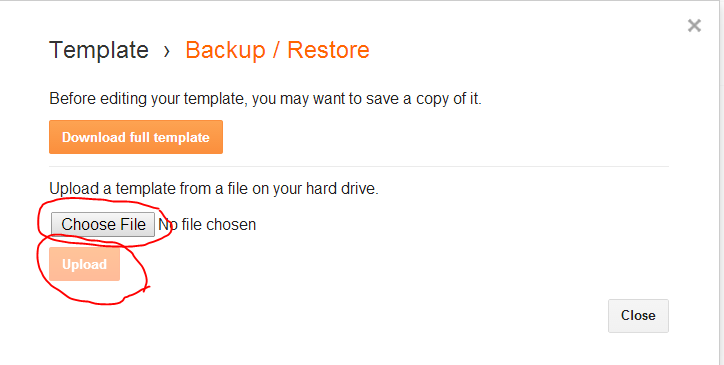
Now go to your blogger Dashboard and click on Template you will see in right side up Backup/Restore, Click on it.


Now pop up window will open, Click on Choose File, and choose that .XML file where you saved it in downloading time. and then Click on Upload.


It  will take some time to upload and then it will return back to the Template Menu. 

Now you have changed your blog template, you can check it by visiting your blog.


Me : If you need more help, want to ask feel free to use below comment box. It will be my pleasure to help you. THANKS for reading.

Wednesday, 12 March 2014

What is Enumerated Data, User Defined Types, Expression, Operators and Comments?

Enumerated Data, User Defined Types, Expression, Operators and Comments.


Enumerated Data:


Enumerated Data is user define data, which is declared with word Enum, syntax for enumerated data is.

                                            Enum UserTypeName
                                                        Value 1
                                                        Value 2
                                                       ------------
                                                        Value n
                                            End Enum

The Value 1, Value 2, - , - , Value n are also called named constant. Each value of enumerated type data has a numbers are assigning to value implicitly or explicitly. This is shown in the following example.


Example:


             Start Visual Basic with a new Standard EXE project. Place two CommandButton Controls on a Form and write the following code in Click event of each CommandButton control and General Section of Form.


In General Section
     Enum listofitem1
               Item1                ‘ implicitly assign 1
               Item2                ‘ implicitly assign 2
               Item3                ‘ implicitly assign 3
        End Enum
Enum listofitem2
          Item11 = 30                ‘ Explicitly assign 30
          Item21                        ‘ implicitly assign 31
          Item23 = 12               ‘ Explicitly assign 12
End Enum


Private Sub Command1_Click ()
     Dim item As Integer
     Item = 2
     Select Case item
         Case 1, 2, 3
               Print, “Item from listitem1”
         Case 4, 5, 6
               Print, “item not from listitem1”
     End Select
End Sub


Private Sub Command2_Click ()
     Dim item As Integer
     Item = 31
     Select Case item
         Case 12, 30, 31
               Print, “Item from listitem2”
         Case 48, 49
               Print, “item not from listitem2”
     End Select
End Sub

Press F5 to run this project and press each CommandButton to check its output.

User Defines Types:


User's Defined data type is one which can be created by using type statement by a user. Syntax of Type statement is
  
                    [Private | Public] Type TypeName
                                 Variable are declared
                    End Type

When type statement is used in General Section of the Form then word Private  is used. Similarly Public word is used when type statement is used in a module section of the visual Basic. User defined data type is just like use of structures in C languages.

Example:


          Start Visual Basic with new Standard EXE Project. Place a CommandButton control on the Form and write following coding in the click event of the CommandButton and in General Section.

Private Type Student
   Rano As Integer
   Name As String
End Sub


Private Sub Command1_Click ()
     Dim x As Integer
     x. Rno  = 10
     x. Name = “ M Shahid “
     Print “ Rno =   “; x. Rno ‘And Name =    “; x. Name
  End Sub

Press F5 to run this project and press each CommandButton to check its output.

Expression:


An expression is the combination of operands ( variables/constants) and operators, which provides a result (+, _, >, 3, 5, 6 and etc). e.g.
  • 5 + 3 - 3
  • x > y and x > z

Operators:


Operators is a symbol or set of two symbols that performs an action between the nearest Operands in Visual Basic commonly following operators are used.
  1. Arithmetic Operators
  2. Relational Operators
  3. Logical Operators

    1. Arithmetic Operators:

                          Arithmetic operators are used for calculation purposes. The list arithmetic operators and their description is shown in the following table.


Operator Symbol
Purpose/Description
Example
+
Addition
3 + 4 = 7
-
Subtraction
5 – 4 = 1
*
Multiplication
23 * 4 = 72
/
Division (Real)
2 / 3 = 1.666666666667
\
Division (Integer)
5 / 3 = 1
Mod
Remainder
5 Mod 3 = 2


    2. Relational Operators:


Relational Operators are used to form simple condition between different operands. The list of Relational operators and its description is shown in following table.


Operator Symbol
Purpose/Description
Example
>
Greater than
5 > 3
<
Less than
-5 < 90
>=
Greater than or Equal
X >= 5
<=
Less than or Equal
X <= y
=
Equal
w = s
<>
Not Equal
67 <> x


    3. Logical Operators:


Logical Operators are used to form a compound condition. Logical Operators are.
  • And     ' The expression with And operator returns True value if both conditions on both sides of               And operator are True otherwise returns False.
  • Or       ' The expression with or operator returns False value if both condition of Or operator are                 False otherwise return True value.
  • Not     '  Used for negation purpose.

Comments ( or Remarks ):


Comments or remarks are those lines of the code of an application, which are not interpreted by the interpreter or compiler (i.e Ignored by interpreter/ compiler ). In Visual Basic a line of code can be a comment or remark if ( ' ) apostrophe symbol or the reserved word Rem is placed at the start, in the middle, or at any other place of the line. The portion after this ( ' ) symbol and word Rem shall not be executed by the interpreter or compiler e.g.

                        ' Line for Comment Or
                        Rem Line for comment

Both statements have same function.


Me : If you need more help, want to ask feel free to use below comment box. It will be my pleasure to help you. THANKS for reading.


Tuesday, 11 March 2014

What are The Types, Scope and lifetime of Variables?

Types, Scope and lifetime of Variables


In Visual Basic variable can be declared in three sections.

  • Procedure.
  • General Section of Form.
  • Module Section of VB.

Procedure Declaration:


When a variable is declared in a procedure ( i.e in subroutine, event handler and function ). The scope and lifetime of that variable will be limited to that procedure in which it is declared. Such variables are considered as local variables. The value of local variable can be preserved between procedure calls if local variable is declared with the Static  keyword.

 Example:

Start Visual Basic with a new Standard EXE project. Place two CommandButton on a Form and changing its Caption according to this diagram.


Write following coding and click event of CommandButton and General Section of Form.

‘ In General Section
  Option Explicit


   Private Sub Command1_Click()
      Print “Used of Static Local Variable”
      Call StaticLocalVarProcedure
End Sub
Sub StaticLocalVarProcedure () ‘ procedure for used of static Variable
      Static a As Integer
      a = a + 1
      print = a
End Sub


   Private Sub Command2_Click()
      Print “Used of Non Static Local Variable”
      Call NonStaticLocalVarProcedure
End Sub
Sub NonStaticLocalVarProcedure ()
      Static a As Integer
      a = a + 1
      print = a
End Sub


Press F5 to run Project and press each CommandButton to check output

General Section Declaration:


When a variable is declared in general section of a Form then it can be called in any procedure which is related with that Form, Such Variables are called Form-wide variable. The Scope and lifetime of such variable is limited to execution of Form.


Example:
                Start Visual Basic with a new Standard EXE Project. Place three CommandButtons controls on a Form and change its Caption property according to diagram.


Write following coding in General Section of Form and Click event of each CommandButton.

   ‘ In General Section of Form
Dim n As Integer

   Private Sub Command1_Click()
                    n = n + 1
End Sub

   Private Sub Command2_Click()
                      Call Increment                   
End Sub
Sub Increment ()
                        n = n + 1
End Sub

   Private Sub Command3_Click()
                      Print “ Value of n = “ ; n
End Sub


Press F5 to run this Project and press each CommandButton to check the output.

Module Declaration:


When a Variable is declared in th module section of Visual Basic, then it can be called in any procedure or function etc. of any application ( i.e. to any procedure of all Forms of current Project ). Such variables  are called global variables and declared with keyword public ( not dim ) in a module e.g.

                               Public n As Integer            ' In module section

Scope and lifetime of global variables limited to the execution of project.


Me : If you need more help, want to ask feel free to use below comment box. It will be my pleasure to help you. THANKS for reading.

 
Search Engine Submission - AddMe url submit Casino us org Seo Packages http://blogsiteslist.com